Every accounting firm has a version of the same story: a client emails their W-2 to someone’s personal inbox, a tax return gets filed from a folder labeled “Final_FINAL_v3,” and a staff member spends 45 minutes tracking down a document that should have taken 45 seconds to find. Document chaos is more than frustrating — it’s a profitability and security problem.
According to research by McKinsey & Company, professionals spend an average of 1.8 hours each day searching for and gathering information. For a firm billing by the hour, that number translates directly to lost revenue. Add the compliance risks of mishandled client data under frameworks such as IRS Publication 4557 and state-level data privacy laws, and the cost of a disorganized document process becomes impossible to ignore.
This guide walks you through a step-by-step document management process built specifically for accounting firms. Whether your firm has five staff members or fifty, the principles are the same: a consistent, documented process reduces follow-ups, speeds up your work, and gives every team member confidence that nothing is falling through the cracks. You don’t need to overhaul everything at once. You need a repeatable system — and this article gives you the framework to build one.
This article is informed by real implementation experience. Ashley White, Customer Success Manager at Firm360, partners with accounting firms to build document management processes that are not only defined — but actually followed in day-to-day operations.
What Is Document Management for Accounting Firms?
Document management is the set of policies, processes, and tools your firm uses to collect, organize, store, share, and retain client documents throughout the lifecycle of an engagement. The key word is process, not software.
Many firms make the mistake of purchasing document management software and expecting the technology to solve the problem on its own. It doesn’t work that way. Software gives you the infrastructure. Process gives you consistency. You need both — but in the right order. A firm with a thoughtful, documented workflow and a basic cloud storage solution will outperform a firm with enterprise-grade software and no standards every time.
Consistency matters more than perfect tools because inconsistency is where errors live. When different staff members name files differently, store documents in different locations, or request the same information from clients in different ways, the result is rework, missed deadlines, and a client experience that feels disorganized — even when your actual accounting work is excellent.
A strong document management process standardizes the decisions your team makes dozens of times per day, so staff spend their energy on client work, not coordination.
The Core Components of a Strong Accounting Firm Document Management Process
Before you build your policy, make sure your process addresses each of these six structural components.
One system of record. Every document lives in one place — not split between email, a shared drive, and a document portal. Your system of record is the authoritative home for all client files. Anything outside it is considered unofficial until it is moved in.
Standard request templates. Every major service line should have a defined list of what clients need to provide, sent the same way every time. This removes ambiguity for clients and eliminates the need for staff to reconstruct a request from memory.
Naming and structure rules. File names and folder structures should be defined at the firm level, not left to individual preference. If two staff members cannot independently produce the same file path for the same document, your convention needs more specificity.
Permissions and audit trail mindset. Not every staff member needs access to every client file. Setting up role-based permissions from the start protects client data and creates a natural audit trail for who accessed or changed what, and when.
Version control rules. Every engagement eventually produces multiple drafts. Your process needs to define how versions are labeled, where interim drafts live, and what happens when a final document needs to be revised.
Retention and archive standards. The AICPA recommends that CPA firms retain working papers for a minimum of five to seven years, though specific requirements vary by engagement type and state. Your process should define what gets archived, where, and for how long — and that decision should be made once, by leadership, not improvised at closeout.
Step-by-Step Accounting Firm Document Management Strategy
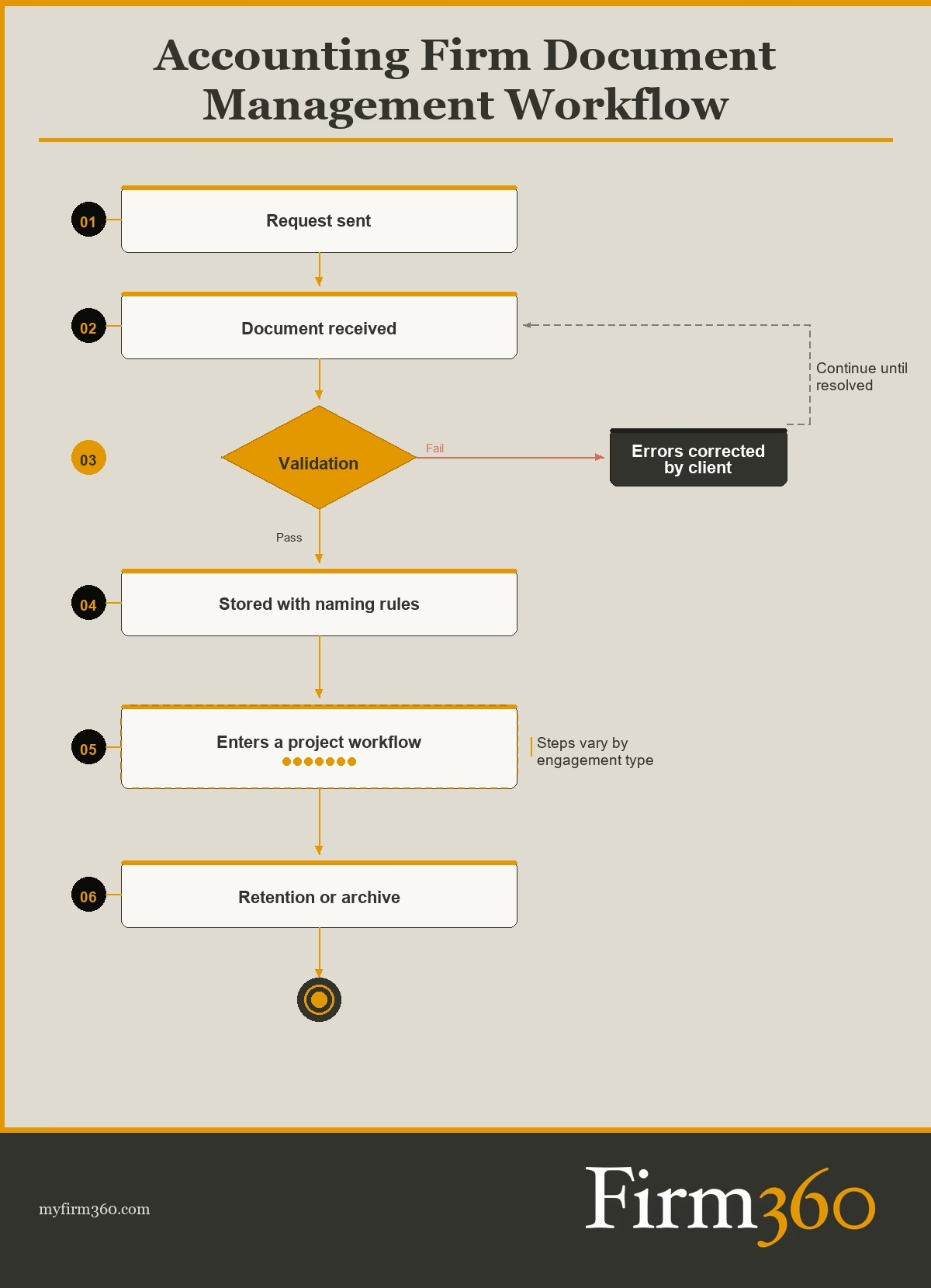
Now that you’re familiar with core components of a document management process, you can put it into practice. The following seven steps walk you through building your document management process from the ground up — with a clear goal, defined standards, automation opportunities, and a way to know when each step is truly complete.
Step 1: Choose a Single System of Record
Goal:
Eliminate multiple storage locations and give every team member one place to look.
What to standardize:
Decide which platform is your system of record — your practice management platform, a dedicated client portal, or a cloud storage solution — and document it in your firm’s operations manual. Define explicitly what is not allowed: personal email inboxes, personal Dropbox accounts, local desktop folders, and unsecured USB drives should all be off-limits for client files.
What to automate:
If your platform supports automatic intake routing — where client uploads land directly in a defined folder tied to their engagement — configure it. Reduce the number of manual steps between receipt and storage.
Definition of done:
Every staff member can describe, without looking it up, where client documents for any active engagement are stored — and there is only one correct answer.
Step 2: Standardize Document Requests by Service Line
Goal:
Make sure clients know exactly what to send, every time, with no guesswork on either side.
What to standardize:
Build a document request checklist for each major service line. The relevant checklist should be the official starting point for every new project once the engagement letter is signed.
| Example Individual Tax Return Document Request Checklist* ☐ Prior year tax return (federal and state) ☐ All W-2s and 1099s ☐ 1098 mortgage interest statement (if applicable) ☐ Charitable contribution receipts over $250 ☐ Schedule K-1s from partnerships or S-corps (if applicable) ☐ Health insurance documentation (if self-employed) ☐ Estimated tax payment records *This example is by no means comprehensive. Consult your tax software or professional standards for more complete checklists. |
What to automate:
If your practice management or portal software allows it, trigger the document request automatically when an engagement is opened. This removes the manual step of sending the checklist and creates a timestamp for when the request was made.
White works with firms on exactly this kind of setup every day. Here’s how she describes what’s possible:
“Firm360 allows you to build request checklists into your project templates so the request can be sent automatically when a project reaches a designated status. No one has to call, email, or remind the clients. The system does all of this for you. Once the checklist is completed by the client, a staff person can be automatically assigned to begin work.”
Definition of done:
Every new engagement starts with a sent document request, and the system shows a received status for each item on the checklist.
Step 3: Set Naming Conventions and Folder Structure
Goal:
Make any file findable by any authorized staff member in under 30 seconds.
What to standardize:
Define a naming convention at the firm level. Fields typically include the client identifier, tax year or engagement year, document type, and version status. Define your folder structure to match your workflow stages.
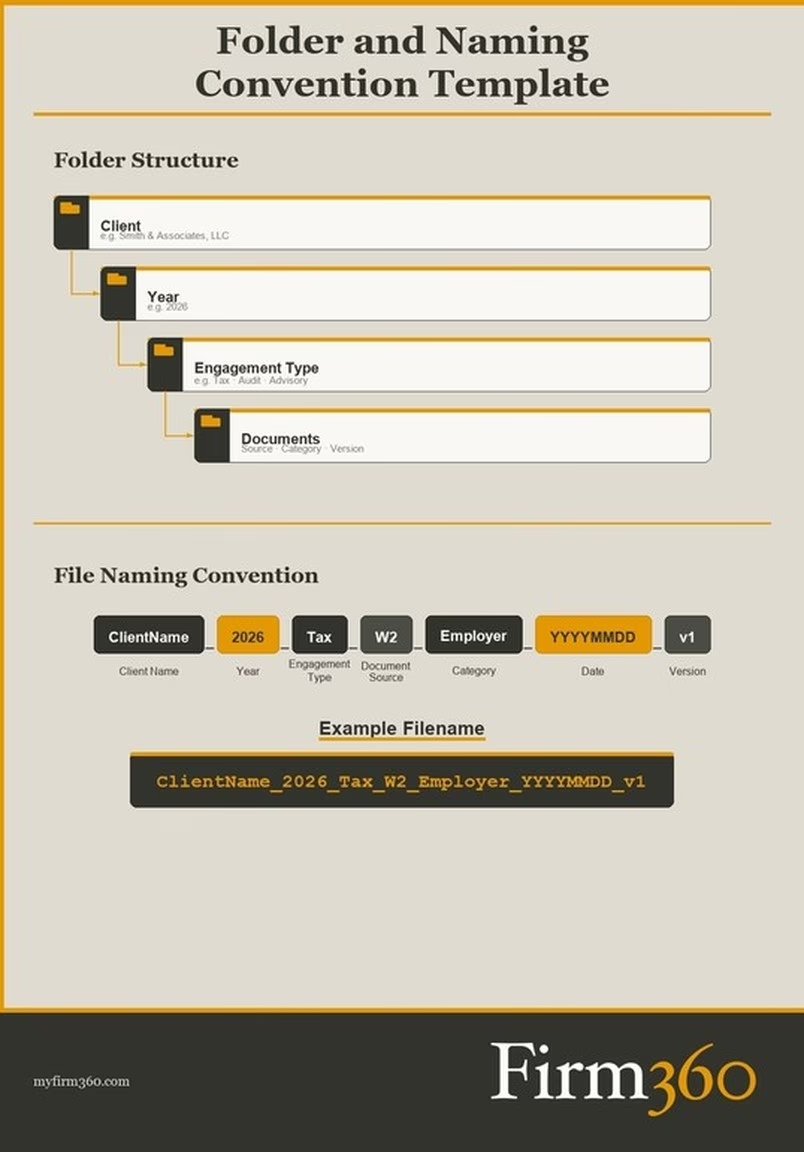
When it comes to naming conventions, White recommends keeping it practical:
“Naming conventions vary according to each firm’s preferences. At the minimum, the naming structure should always include the year and type of document. Client name is another element worth including. Whatever convention you choose to follow, keep it simple and be sure to train the staff on how to use it.”
What to automate:
Configure your platform to auto-generate folder creation so when a new client is created, there’s no manual effort in creating their folder structure for documents.
Definition of done:
A new staff member could navigate to any client’s source documents on their first day without asking for help.
Step 4: Create a Validation and Completeness Checkpoint
Goal:
Catch incomplete or unusable documents before they stall your work.
What to standardize:
Define what counts as a complete document intake for each service line. This means specifying acceptable file formats (e.g. PDF preferred over photos), minimum resolution for scanned documents, and required fields (for example, a W-2 must show the employer EIN and all numbered boxes). Equally important: define your process for handling documents that don’t meet the standard. Who is responsible for following up with the client? How quickly? Through which channel?
What to automate:
Use your portal or task management system to flag engagements with outstanding items. Automated reminders reduce the burden on staff to manually track what is still missing.
Definition of done:
No engagement moves from intake to work-in-progress until all required documents are marked received and validated.
Step 5: Set Permissions and Sharing Rules
Goal:
Protect client data by giving system users access to only what they need — and nothing more.
What to standardize:
Apply the principle of least privilege: every user account should have the minimum level of access required for their role. Staff should be able to access the files for their assigned engagements. Partners may have broader access. Clients should be limited to their own portal — they should never be able to browse other clients’ files, and they should never receive documents via unencrypted email attachment.
What to automate:
Configure role-based access controls (RBAC) in your system of record. If it doesn’t support RBAC, that is a meaningful gap to address. The FTC Safeguards Rule — which applies to tax preparers and accounting firms — requires that firms implement access controls that limit employee access to customer information on a need-to-know basis.
Definition of done:
Every user role has documented permissions. No client receives a document via unsecured email. Sharing outside the system requires documented approval.
Step 6: Establish Version Control Rules
Goal:
Prevent the “Final_FINAL_v3” problem from happening in the first place.
What to standardize:
Define exactly three version states: draft, review, and final. Drafts are labeled with incremental version numbers (v1, v2, v3). The review version is the one submitted for partner or manager sign-off. Once approved, the file is renamed to “Final” and moved to the deliverables folder. No file should ever be labeled “Final” until it has been approved. Define what happens when a final document needs to be revised: e.g. the original is archived (not deleted), and a new version cycle begins.
What to automate:
If your document management system supports version history, enable it. This creates an automatic log of changes without relying on manual file naming.
“If you’re managing documents manually, you run the risk of staff incorrectly naming files as they’re updated and losing track of which version is the most up-to-date.”
Purpose-built platforms can reduce that risk significantly — Firm360, for example, includes a check-out feature that allows staff to lock a document for editing so others cannot make changes while it is in use.
Definition of done:
There is never more than one file labeled “Final” in a deliverables folder. All previous versions are archived.
Step 7: Create a Retention and Archive Workflow
Goal:
Close out engagements cleanly and meet your professional obligations for document retention.
What to standardize:
Create a closeout checklist that runs when an engagement is marked complete. The checklist should confirm: the final deliverable is in the deliverables folder, all source documents are in the source documents folder, all correspondence is saved, and the engagement is archived in your system. For retention timelines, follow your state board’s guidance and your malpractice carrier’s recommendations. As a baseline, the AICPA suggests a minimum of five to seven years for most working papers, with longer periods for audit engagements.
| Engagement Closeout Checklist: ☐ Final deliverable filed in Deliverables folder ☐ All source documents in Source Documents folder ☐ Client correspondence saved to Correspondence folder ☐ Engagement marked complete in practice management system ☐ Invoice issued and payment confirmed ☐ Retention date set in archive system |
What to automate:
Configure your platform to trigger the closeout checklist when an engagement status changes to complete. Set automated reminders to review and purge archived files that have exceeded your retention period.
On the mechanics of archiving, White keeps it straightforward:
“Whatever retention policy you adopt, make sure it’s clearly communicated to staff and followed. With Firm360, you can filter to the set of documents you’d like to archive and then move them into an archive folder. You can use automation to make this step a part of your workflows and assign the responsibility to the right person.”
Definition of done:
Every closed engagement has a completed closeout checklist on file and a defined retention expiration date.
How to Build Exceptions Into Your Document Management Process
Realistically, we know that no process survives contact with clients unchanged. A strong document management process does not pretend exceptions will not happen — it defines how to handle them.
When clients email documents instead of uploading to the system of record: This is the most common exception, and it will happen regardless of how clearly you communicate your process. Designate one staff role — often the admin or client services coordinator — as responsible for moving emailed documents into the system of record within one business day. Log the receipt date and notify the client with a reminder to use your designated system for future submissions. Do not let emailed documents sit in inboxes. Prevention starts at onboarding:
“Onboarding is the perfect time to set client expectations. Let clients know during this stage why it’s important to upload all documents through a secure channel such as a client portal. At Firm360, our client portal protects clients’ financial health by using bank-grade encryption to host their documents securely.”
When urgent documents arrive late in an engagement: Define what “urgent” means and who has authority to approve an expedited workflow. Late documents should still be logged and validated — shortcuts on intake create problems at closeout. If a document arrives after the final deliverable has been submitted, or if the late document will necessitate an extension, document the late receipt and communicate clearly with the client about the impact.
When multiple stakeholders are involved: Business clients, trust clients, and multi-entity clients often involve several contacts who may each send portions of the required documents. Assign one internal owner per engagement who is responsible for reconciling everything. The client-facing document request should designate one primary contact on the client side as well.
Bringing exceptions back into the process: Any document that arrives outside the standard process should be moved into the system of record before the engagement advances. Create a simple log entry or note in your practice management system when an exception occurs — this helps identify patterns over time and informs future process improvements.
Accounting Firm Document Management Metrics to Track
There’s an old saying in management: what gets measured gets managed. And it applies here. Once your process is in place, track these metrics to identify where it is working and where it needs refinement.
Time from request to receipt. How long does it take, on average, for clients to respond to document requests? Tracking this by service line can reveal which client segments need better communication or reminder workflows.
Follow-ups per engagement. How many times does your team contact a client to chase missing or incomplete documents? A high number indicates your initial request process needs improvement.
Rework caused by wrong versions. How often does work need to be redone because someone worked from an outdated document? This measures the effectiveness of your version control rules.
Turnaround time by engagement type. How long does it take, from complete document receipt to delivery of the final work product? Improvement in your document process should show up here over time.
White notes that the right tools can surface these metrics more quickly:
“When it comes to assessing improvement in your document management process, look for faster turnaround times and fewer missing documents. In Firm360, you can set up alerts to be notified by project or by client when documents are uploaded, and you can reference the Client Upload report.”
What Is Document Management Software for Accounting Firms?
Document management software is a platform — or a module within a broader accounting practice management platform — that provides a structured digital environment for storing, organizing, sharing, and tracking client documents. For accounting firms, purpose-built options typically include features such as a secure client portal for document exchange, automated document request workflows, role-based access controls, version history, deadline tracking, and audit logs.
It is worth distinguishing between general-purpose document storage tools (such as SharePoint or Google Drive) and purpose-built accounting firm platforms. General-purpose tools are generally familiar, readily accessible, and perhaps already included in a subscription package, but they are not configured to meet the specific needs of an accounting firm — and they lack native integrations with tax and accounting software. Purpose-built platforms are designed around accounting workflows and are typically faster to implement for firms that are ready to standardize their operations.
How to Know Your Accounting Firm Is Ready for Document Management Software
Here’s a hard truth worth repeating: software will not fix a broken process. But once your process is working, the right software can accelerate everything. Here are some signals that your firm is ready to invest in purpose-built document management software.
Your team has agreed on a process but can’t enforce it. If staff know the right way to handle documents but rely on memory and manual reminders to do it consistently, software gives you the infrastructure to enforce your standards automatically.
You are growing and onboarding new staff regularly. Every new hire is a test of how well your process is documented. If onboarding a new staff member to your document process takes more than a day, software with built-in structure and permissions can reduce that dramatically.
Your clients are asking about security. Sophisticated clients — particularly business owners and high-net-worth individuals — increasingly ask how their data is stored and who has access to it. A secure client portal with role-based access controls is a meaningful differentiator and a credible answer to that question.
You are preparing for succession or a potential merger. A firm that can demonstrate a clean, auditable document history is more valuable and easier to transition than one whose files are scattered across individual email accounts and local drives.
You are spending more time managing documents than doing client work. If your admin staff are spending a significant portion of their day chasing documents, reconciling versions, or explaining the filing system to colleagues, the cost of that time almost certainly exceeds the cost of software that automates those tasks.
Conclusion
Building a complete document management process does not need to happen all at once. The most effective approach is to pick one service line. Individual tax returns are usually the best starting point because the document list is predictable and the season creates a natural forcing function. Implement the full seven-step process there first.
Document what works, adjust what doesn’t, and build from there. Your second service line will go faster. Your third, faster still. Within two or three cycles, you will have a firm-wide process that staff actually follow because they helped build it and because it genuinely makes their work easier.
Firms that are ready to pair a documented process with purpose-built software should evaluate platforms built specifically for accounting firm operations — with secure client portals and workflow automation.
Frequently Asked Questions
What is a document management process for an accounting firm?
A document management process is the set of standardized policies and procedures that governs how your firm collects, names, stores, shares, and retains client documents. It is distinct from document management software: the process defines the rules; the software helps enforce them. A complete process covers document requests, naming conventions, folder structure, permissions, version control, and retention timelines.
What is the best way to organize client documents for tax season?
The most effective approach is a standardized folder structure tied to each client and tax year, with defined subfolders for source documents, work-in-progress files, final deliverables, and correspondence. Every client should have the same folder structure, and file naming should follow a consistent convention that includes the client identifier, tax year, document type, and version status. Using a standardized document request checklist at the start of every engagement reduces follow-ups and speeds up intake.
How do you set naming conventions that staff will actually follow?
The key is simplicity and documentation. Conventions that are too complex get ignored. Define the minimum required fields — client ID, year, document type, version — and provide staff with a naming reference card they can keep at their desk or bookmark in their browser. More importantly, explain the why: staff who understand that consistent naming makes documents findable and prevents rework are far more likely to adopt the convention than staff who receive a policy memo with no context.
How do you handle clients who email documents instead of using your system of record?
Designate a staff role responsible for moving emailed documents into your system of record within one business day. Send the client a brief, friendly reply confirming receipt and reminding them to use the system for future submissions — do not lecture, just redirect. Track how often this happens by client. If a specific client consistently continues to email documents, a short conversation about why (often it is a usability issue) is more effective than repeated reminders.
What permissions should clients and staff have?
Apply the principle of least privilege: every user should have access to the minimum required for their role. Staff should access only their assigned engagements. Partners typically have broader access. Clients should be limited to their own portal and should never receive unencrypted email attachments containing sensitive documents. The FTC Safeguards Rule requires tax preparers and accounting firms to implement access controls that limit employee access to customer information based on need — this is a compliance floor, not just a best practice.
How do you avoid version control issues?
Define exactly three version states — draft, review, and final — and enforce a rule that only one file in any engagement can carry the “Final” label at a time. All previous versions are archived, not deleted. If your document management system supports automatic version history, enable it. The most common version control failure is not a technology problem: it is a habit problem. Teams that name files descriptively and move final versions to a dedicated deliverables folder as a required workflow step experience far fewer version conflicts than teams that rely on memory and good intentions.
How do you set a document retention policy without overcomplicating it?
Start with the baseline guidance from your state CPA society and the AICPA, then check with your malpractice carrier — some carriers have specific requirements that affect how long you should retain workpapers. From there, create a simple retention schedule with three or four tiers: for example, individual tax returns (seven years), audit workpapers (ten years), and general client correspondence (five years). Assign a staff role responsible for running an annual archive purge. Automate the reminder if possible. The goal is a policy simple enough to execute consistently, not a policy comprehensive enough to cover every edge case.
Expert Bio: Ashley White, Customer Success Manager, Firm360
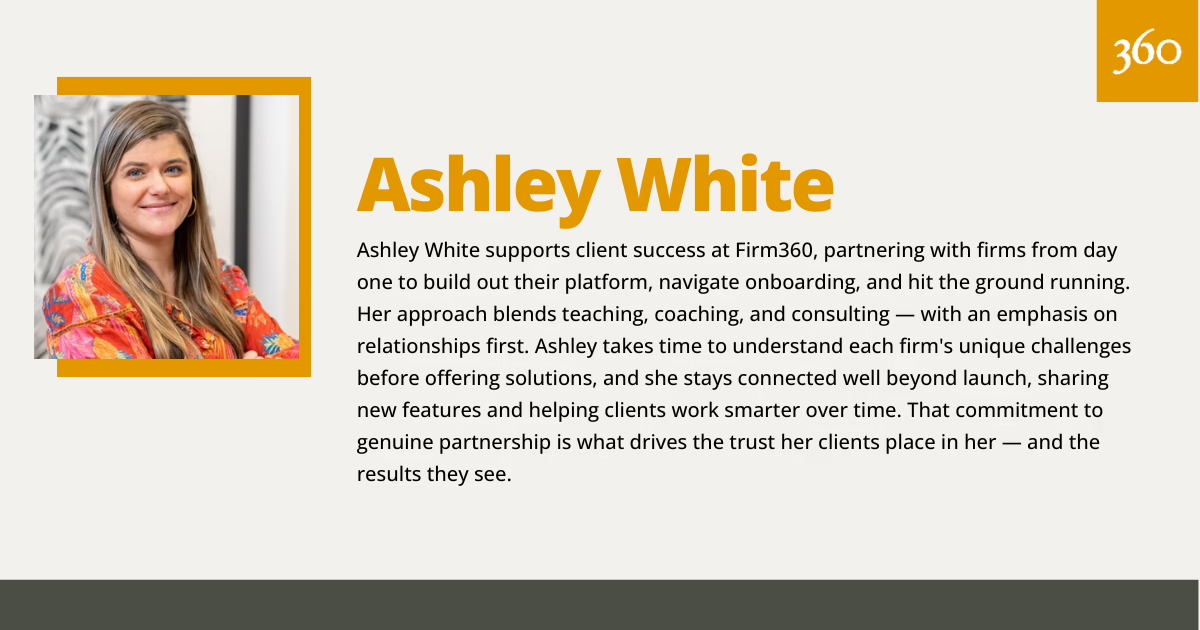
Ashley White supports client success at Firm360, partnering with firms from day one to build out their platform, navigate onboarding, and hit the ground running. Her approach blends teaching, coaching, and consulting — with an emphasis on relationships first. Ashley takes time to understand each firm’s unique challenges before offering solutions, and she stays connected well beyond launch, sharing new features and helping clients work smarter over time. That commitment to genuine partnership is what drives the trust her clients place in her — and the results they see.